

SiteGuru is an approved Claude connector. You'll find it in Claude's connector directory, so adding it takes a few clicks: no URL to paste and no key to copy. Once it's connected you can ask Claude what to fix on your site, which pages lost traffic, or what you rank for, and the answers come from your own live SiteGuru data instead of general SEO advice. New to the SiteGuru MCP? Start with the MCP overview for what it does and what you'll need.
Before you start
- A SiteGuru plan that includes MCP access (you connect as an account owner).
- Claude on the web, the Claude desktop app, the Claude mobile app, or Claude Code. The same connector serves all of them.
Add the SiteGuru connector
Claude and Claude Desktop
- Open your connector settings: Customize → Connectors on claude.ai, or Settings → Connectors in the desktop app. You can also do it mid-conversation from the Search and tools menu, using Add connectors.
- Search for SiteGuru and click Connect.
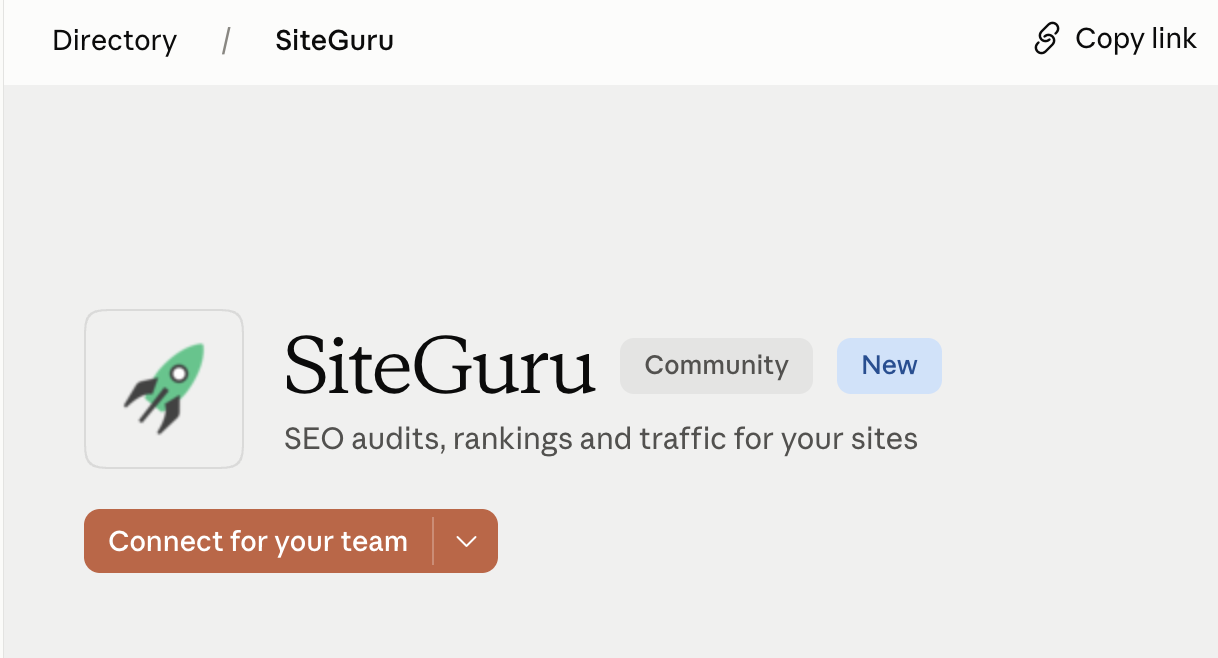
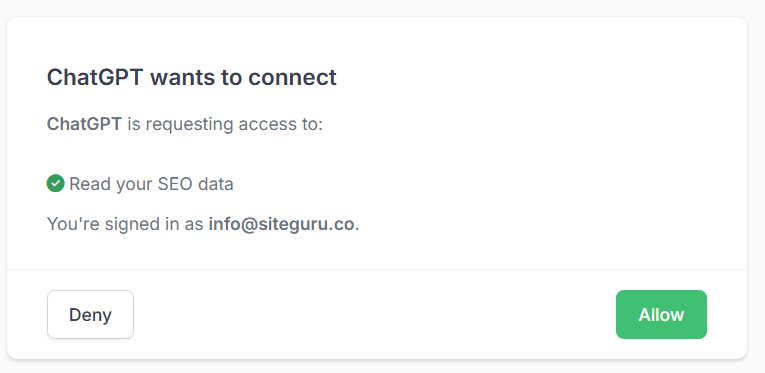
- Claude opens a SiteGuru page in your browser. You're already signed in, so just click Allow to approve access to your SEO data.
- SiteGuru now appears as a connected tool. Enable it in a chat and ask away.
The same steps work in the Claude mobile app.
Claude Code
Run this in your terminal:
claude mcp add --transport http siteguru https://mcp.siteguru.co/mcp
Claude Code opens your browser to sign in to SiteGuru and click Allow. Once approved, the connection is ready. Type /mcp to check the connection status at any time, then ask Claude Code something about your site to confirm.
Ask your first question
To check the connection, ask Claude:
Which sites do I have in SiteGuru?
Then try
What should I fix first on example.com?
(using one of your own sites).
The first time it uses the connection, Claude may ask you to approve the SiteGuru tools. Allow them to continue. For more prompt ideas, see the MCP overview.
Once that works, try a traffic or rankings question:
Which pages on example.com lost traffic last month?
What keywords am I ranking for on example.com?
What "community connector" means
Claude's directory labels every connector with the level of review it has had, and SiteGuru is listed as a community connector. That label is about Anthropic's review depth, not about what the connector can reach. What it can reach is set by us and by you: a connection reaches exactly the sites you can access in SiteGuru and nothing else, you approve it yourself on the Allow screen, and access is re-checked on every single request. You can revoke it at any time, from either side.
Managing the connection
You can disconnect any time, either from your connector settings in Claude, or from SiteGuru under Account settings → API access, where Connected apps lists everything you've approved. Disconnecting from SiteGuru takes effect immediately.
If you can't add it from the directory
The directory is the route we recommend. If your Claude plan, workspace or app version doesn't offer it yet, you can add SiteGuru by hand instead. You'll need one extra thing: SiteGuru's Server URL, which is https://mcp.siteguru.co/mcp.
- Open your connector settings and choose Add custom connector.
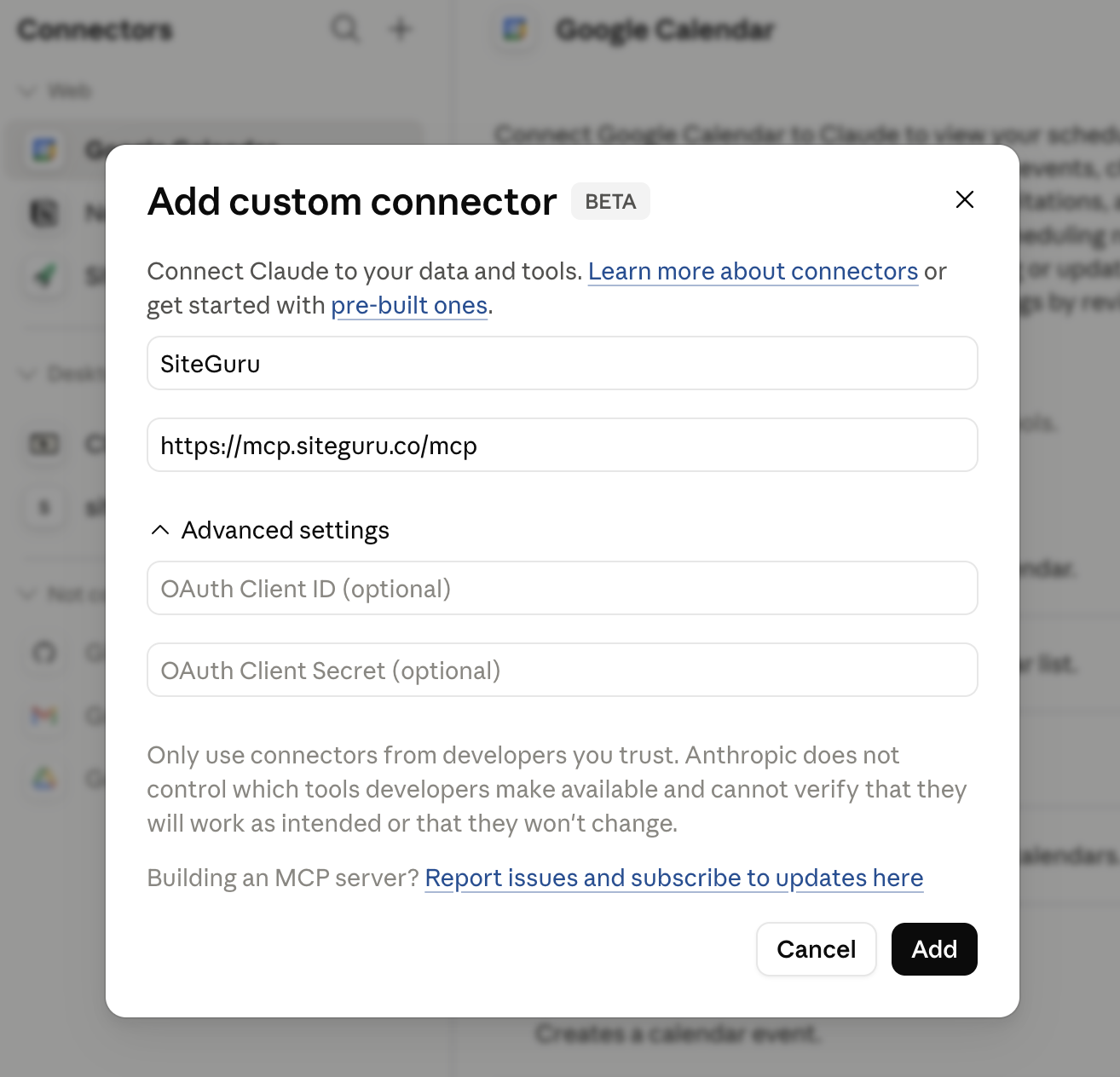
- Paste the Server URL
https://mcp.siteguru.co/mcpand click Add. Leave the fields under Advanced Settings empty. - Click Allow on the SiteGuru page that opens, exactly as with the directory route.
The connection you get this way is the same one the directory gives you. The directory only saves you the setup.
Troubleshooting
- I can't find SiteGuru in the directory. Search for SiteGuru as one word, or open the directory listing directly. If your plan or workspace doesn't offer directory connectors, use the manual route above.
- I see a Request button instead of Connect. You're on a Claude Team plan without permission to enable connectors. Clicking Request sends it to your Claude admins, who can enable SiteGuru for the whole organisation.
- SiteGuru isn't showing up. Fully restart Claude after connecting (quit and reopen, don't just close the window), then make sure it's enabled in the chat's tools.
- "MCP access isn't included in your plan" on the Allow screen. The MCP server needs a SiteGuru plan that includes MCP access. Upgrade and reconnect.
- Authentication or "unauthorized" errors. Reconnect and click Allow again to refresh access.
- "No sites found." A connection only reaches the sites on its owner's account. Check you're using the right account, and that the site is still in your account.
Prefer ChatGPT? The same data is available there too: see Connect SiteGuru to ChatGPT. Still stuck? Get in touch and we'll help you get connected.