
Your product pages are where SEO meets revenue. They're the pages people land on from Google when they're ready to buy, and they're where the work of ranking (titles, descriptions, structured data, indexation) directly translates into sales. Get them right, and you compound traffic and conversions across your whole catalogue. Get them wrong, and you're invisible to the shoppers who are actively searching for what you sell.
Shopify gives you a solid foundation out of the box, but it doesn't get everything right automatically. Themes vary in how they handle titles and structured data, default meta descriptions are often missing or generic, and multi-variant products introduce edge cases that quietly break rich results in Google. Most of these issues aren't visible from the Shopify admin. You have to look at the rendered HTML to spot them.
That's what our free Shopify Product Page Check does: it scans any product URL and reports on the SEO essentials, from the basics like titles and H1s through to Shopify-specific concerns like variant-level structured data and canonical handling. Below, we walk through each check the tool performs, why it matters for a Shopify store, and where in your admin you can fix it.
Page title
The page title is the text that appears in the browser tab and, more importantly, as the clickable headline in Google's search results. It's controlled by the <title> tag in your page's HTML, and on a Shopify product page it's typically generated from the product name by default — though you can override it.
This check matters because the page title is one of the strongest on-page ranking signals you have. Google uses it to understand what the page is about, and shoppers use it to decide whether to click. For a product page, that means the product name needs to be in there. Without it, you're making it harder for both Google and customers to connect the dots between someone's search and your product.
A good product page title contains the product name clearly and prominently, ideally near the start. Many Shopify stores follow a pattern like "Product Name – Brand" or "Product Name | Store Name", which keeps the product front and centre while still reinforcing the brand. Aim to keep it under roughly 60 characters so it doesn't get truncated in search results.
Common issues include missing titles altogether, titles that only show the store name (a theme misconfiguration we see fairly often), or generic titles like "Product" that give Google nothing to work with. Overly long titles get cut off, and stuffing the title with keywords or variant details can make it look spammy and hurt click-through rates.
In Shopify, you can edit the page title per product under Products → [your product] → Search engine listing → Edit website SEO. The "Page title" field there overrides the default.
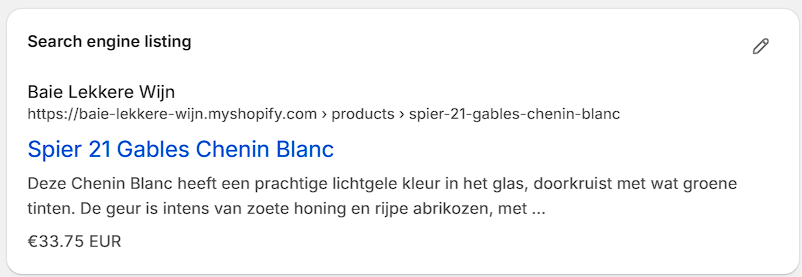
If your titles are coming out wrong across the whole store, the issue is usually in the theme's theme.liquid or product.liquid template, where the <title> tag is constructed.
Meta description
The meta description is the short snippet of text that appears beneath your page title in Google's search results. It lives in a <meta name="description"> tag in your page's <head>, and while Google doesn't always use exactly what you write (it sometimes generates its own from page content), a well-crafted description is usually shown as-is and gives you direct control over the pitch shoppers see before they click.
It matters because it's effectively free ad copy. The meta description doesn't directly influence rankings, but it heavily influences click-through rate, which compounds over thousands of impressions. For a product page, this is your chance to sell the product in two lines: what it is, why it's worth clicking, and what makes it different from the nine other results on the page.
A good product meta description is unique to the product, mentions the product name, highlights a key benefit or differentiator (free shipping, materials, sizing, a guarantee), and includes a soft call to action where it fits naturally. Keep it under roughly 155 characters so it doesn't get truncated, and write it for humans first. Keyword stuffing here does nothing for rankings and hurts click-through.
Common issues include missing descriptions (Shopify leaves this blank by default unless you fill it in, and many themes don't auto-generate one), duplicate descriptions across multiple products, descriptions that are just the first line of the product description copied verbatim, and descriptions that are too long and get cut off mid-sentence. The duplicate problem is especially common on stores with large catalogues or many variants.
In Shopify, you set the meta description per product under Products → [your product] → Search engine listing → Edit website SEO, in the "Meta description" field directly below the page title.
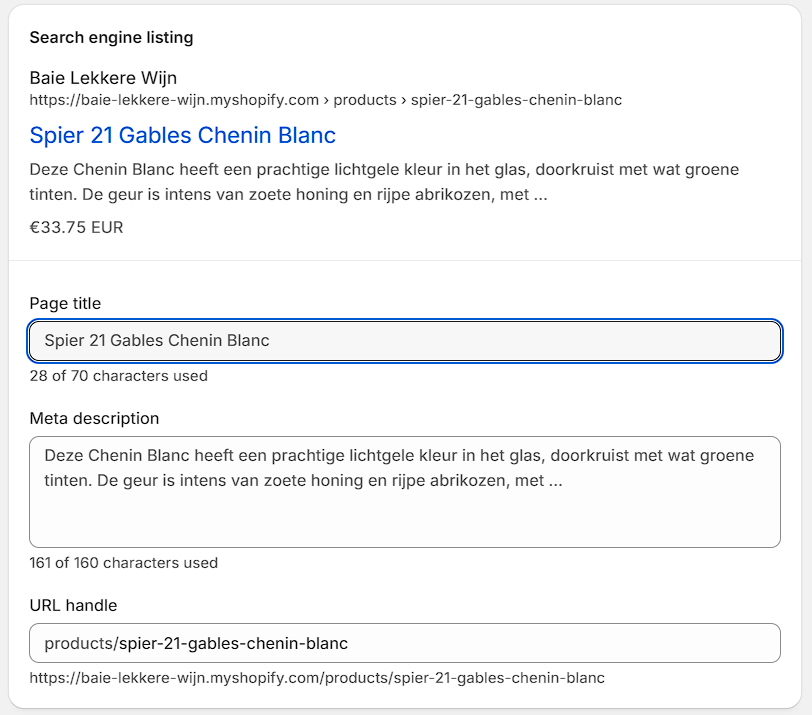
If the field is left empty, Shopify will fall back to the product description, which is rarely optimised for search snippets, so it's worth filling this in deliberately on every product that matters.
H1 heading
The H1 is the main heading on the page, marked up with an <h1> tag in the HTML. On a Shopify product page, it's almost always the product name displayed prominently at the top of the page, above the price and add-to-cart button. There should only be one H1 per page, and it should describe what the page is about.
It matters because the H1 is one of the strongest on-page signals to Google about what the page is about, second only to the title tag. It also helps with accessibility: screen readers rely on heading structure to help visually impaired users navigate the page. For a product page, the H1 confirms to shoppers (and Google) that they've landed on the right product.
A good product page H1 contains the full product name, clearly and without extra clutter. It should match the product as customers and Google know it, so if your title tag says "Merino Wool Crew Neck Sweater", the H1 should too. There should be exactly one H1 on the page, and it should be the product name, not a category, tagline, or store name.
Common issues include pages with no H1 at all (some themes use styled <div> or <p> tags instead of proper heading markup), multiple H1s on the same page (often caused by the theme wrapping the logo or a promotional banner in an H1), or an H1 that contains the store name instead of the product name. We also occasionally see H1s that are just "Product" or generic placeholders left over from theme setup.
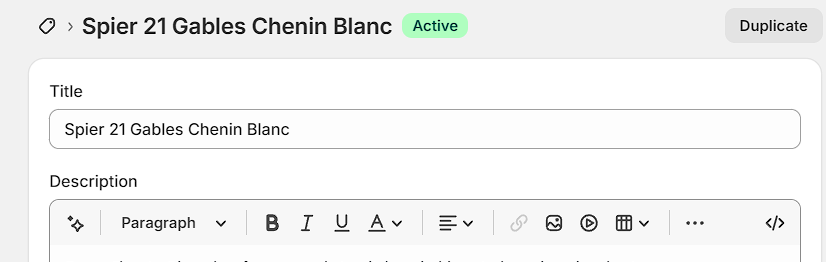
In Shopify, the H1 is automatically pulled from the product's Title field, which you'll find at the top of every product edit screen under Products → [your product]. You don't edit the H1 directly: change the product title and the H1 updates with it. If your H1 is missing or wrong despite the title being correct, the issue is in your theme's product.liquid (or main-product.liquid in newer themes), where the heading markup is rendered.
Product description
The product description is the body copy explaining what the product is and why someone should buy it. On Shopify, you write it in the rich-text editor on the product edit screen, and it gets rendered into the page HTML and into your structured data. This check looks at the description field in that structured data to confirm it's substantial enough to give search engines real context.
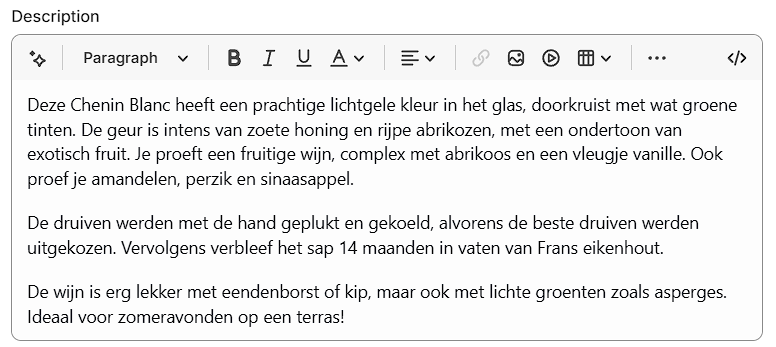
The product description matters because the description is what convinces someone to buy. Shoppers come to a product page with questions and doubts: will it fit, is it good quality, does it work with what I already have, is it worth the money? A strong description answers those questions before they have to go looking elsewhere, and the ones who don't get answers usually just leave. The SEO benefit comes along for the ride: the more thoroughly you describe the product, the more vocabulary Google has to match it against real searches (materials, use cases, sizing, compatibility, problems solved).
A good description is unique to the product (not copy-pasted from the manufacturer), gives shoppers what they need to decide, and is long enough to cover the product properly. Roughly 150 words is a reasonable floor for most products, longer when there's more to say. Write for the customer first and let the search terms come naturally.
Common issues: descriptions that are too short to be useful, copy lifted verbatim from the manufacturer (creating duplicate content across every retailer selling it), keyword-stuffed copy written purely for SEO, and empty description fields on older or bulk-imported products.
In Shopify, edit this in the Description field on the product edit screen, under Products → [your product]. It's a rich-text editor, so you can add headings, lists, and images. Shopify only provides one description field per product, so if you need different content per variant, you'll need a theme or app that supports it.
Structured Data
Structured data is extra information you add to your page in a format search engines can read directly, usually a block of JSON-LD in the HTML. For a product page, it tells Google in machine-readable terms what the product is, what it costs, what variants exist, and whether it's in stock. Shopify generates this automatically on most themes, but the quality varies, and we see broken or incomplete markup on a large share of stores.
We check three things: that product structured data is present, that every variant has a matching Offer with availability, and that the prices in the structured data match what's actually shown on the page.
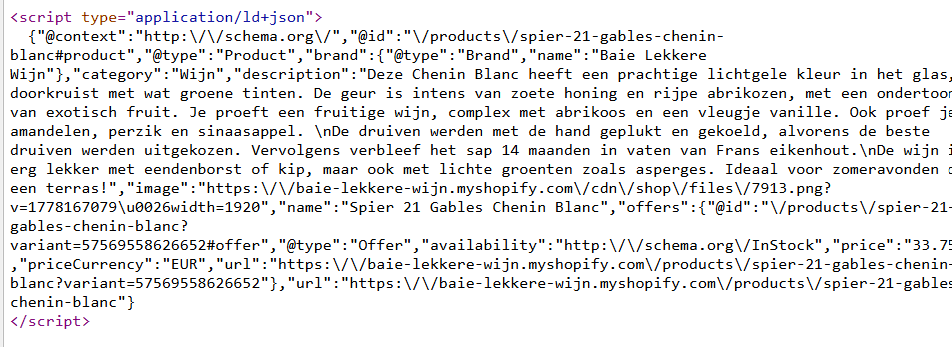
Getting this right is what unlocks rich results in Google: the price, star rating, and stock status that appear under your listing in search. Rich results take up more space, look more trustworthy, and get clicked more often than plain blue links. When the structured data is missing, Google falls back to a regular listing. When it's wrong, especially with mismatched prices, Google may suppress the rich result entirely or flag warnings in Search Console.
A good product page has a single Product JSON-LD block containing the name, description, image, and an offers array with one Offer per variant, each carrying the correct price, currency, and availability. Those prices need to match exactly what shoppers see on the page, including after any currency conversion.
The problems we see most often are structured data missing entirely (older themes, or themes where it's been stripped out by a customisation), an offers array that only includes the default variant, and price mismatches caused by Shopify Markets, discount apps, or currency converters that update the visible price but not the JSON-LD. Price mismatches are the most common and the most damaging, since they're what typically trigger Search Console warnings.
Structured data is generated by your theme, not the Shopify admin, so there's no field to edit it directly. If it's missing or broken, the fix is in your theme's Liquid templates (typically product.liquid or a product-schema.liquid snippet), or by installing a structured data app that overrides the theme's output. For price mismatches, double-check that any currency or discount apps you use are updating the JSON-LD too, not just the visible price.
Indexation
Indexation is whether Google is allowed to add your page to its search index. It's controlled by a meta robots tag in the page's HTML and by your site's robots.txt file. The most common values are index, follow (Google can include the page and follow its links) and noindex, nofollow (Google should skip it entirely). For a product page you want to rank, the answer needs to be the first one.
This is the check that catches the most painful kind of SEO problem: a page that's perfect in every other way but invisible to Google because a single tag is telling search engines to stay away. We see it regularly on stores where a developer set noindex during a redesign and forgot to remove it, or where a Shopify app added it without anyone noticing. A noindexed product page can't rank, no matter how good its title, description, or structured data are.
A healthy product page returns a meta robots tag set to index, follow (or simply has no robots tag at all, which Google treats as indexable by default), and isn't blocked by robots.txt. Shopify's default behaviour is to allow product pages to be indexed, so on a standard setup you shouldn't have to do anything.
When things go wrong, it's usually one of a few culprits: a development or staging theme accidentally pushed live with noindex still in place, an SEO app that's been misconfigured and is blocking product pages, or specific products manually excluded from search engines in the Shopify admin. Password-protected stores also block indexation entirely, which trips people up when they launch.
In Shopify, you can prevent individual products from being indexed under Online Store → Preferences, where there's a sitewide search engine visibility setting, and at the product level through some SEO apps. There's no per-product noindex toggle in the standard Shopify admin, so if a single product is noindexed, the cause is almost always a theme customisation or an app. Check Online Store → Preferences first, then your installed apps, then your theme code.
Canonical URL
A canonical URL is a <link rel="canonical"> tag in your page's <head> that tells Google which version of a page is the "official" one. It exists to solve duplicate content problems: when the same product is reachable at multiple URLs, the canonical tag tells Google to consolidate all the signals (links, rankings, authority) onto a single chosen URL.
This is especially important on Shopify, which is notorious for creating duplicate URLs. The same product can appear at /products/my-product and at /collections/some-collection/products/my-product, and variant selections, tracking parameters, and pagination can spawn even more versions. Without a correct canonical, Google has to guess which one to rank, and it often picks the wrong one or splits ranking signals across all of them.
A correct canonical points to the clean product URL (/products/my-product), regardless of which collection the visitor arrived from or which variant they selected. Shopify handles this correctly by default on most modern themes: every product page should canonicalise to the /products/ URL.
The issues we see are canonicals pointing to the wrong URL (a collection path instead of the clean product URL), canonicals pointing to a different product entirely (usually a theme bug), missing canonical tags altogether, or self-referencing canonicals on URLs that shouldn't exist as separate pages in the first place.
There's no field in the Shopify admin to set canonicals: they're generated by your theme. If your canonicals are wrong, the fix is in your theme's theme.liquid or wherever the <head> is rendered. If you're using apps that create variant-specific URLs or landing pages, double-check that they're not overriding canonicals incorrectly.
OpenGraph tags
OpenGraph tags are meta tags in your page's <head> that control how the page looks when shared on social media. When someone pastes your product URL into Facebook, LinkedIn, WhatsApp, or Slack, the platform reads these tags to decide which title, description, and image to show in the preview. The main ones are og:title, og:description, og:image, and og:url.
A good preview makes a product look clickable; a missing or broken one makes it look unprofessional and gets scrolled past. Since social shares are free traffic, it's worth getting right. The most common issue is a missing or wrongly sized og:image, which results in an ugly preview with no product photo.
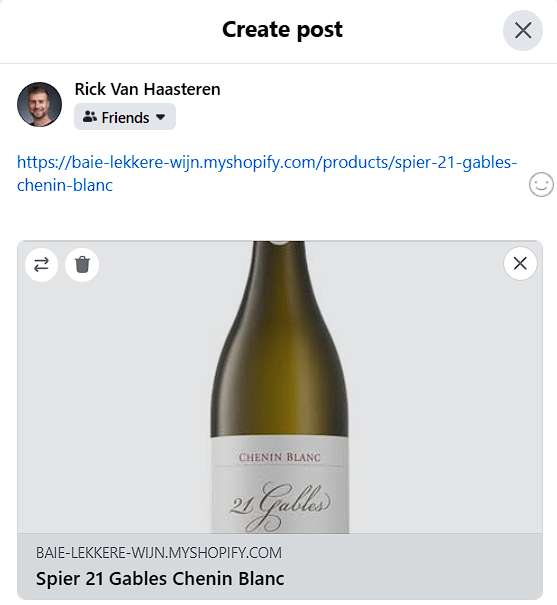
As you see here, just entering the URL makes Facebook load the image and title.
Most Shopify themes generate OpenGraph tags automatically from your product data and featured image (set under Products → [your product] → Media), so this usually takes care of itself. If the output is missing or wrong, the fix is in your theme's Liquid templates, typically theme.liquid or a social-meta-tags.liquid snippet.
Alt texts
Alt text is a short description of an image, set via the alt attribute on the <img> tag. Screen readers read it aloud to visually impaired users, and search engines use it to understand what an image shows. On a product page, the photos are what matter most.
It helps on two fronts: image SEO (Google Images is a real traffic source for visual categories like fashion and home goods) and accessibility (legally required in a growing number of regions). Good alt text describes the image naturally and specifically, the way you'd describe the photo to someone over the phone. The common issues are missing alt attributes, empty ones on meaningful product images, and lazy placeholders like the filename or the product title repeated on every photo.
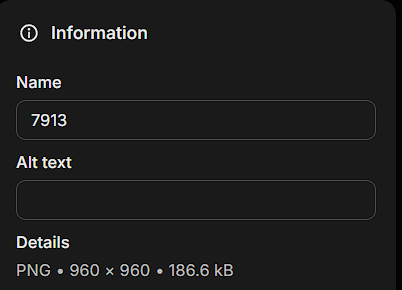
In Shopify, you set alt text per image under Products → [your product] → Media. Click an image and you'll find an "Alt text" field. Worth doing for at least the main photo on every product.
Hreflang language tags
Hreflang tags are <link rel="alternate" hreflang="..."> tags in your page's <head> that tell Google which language and region each version of a page is meant for. They only matter if you run a multi-language or multi-region store; single-country shops can ignore this entirely and the check will pass.
If you do sell internationally, hreflang is what makes international SEO actually work: without it, Google might rank your German page in the UK or your USD page for shoppers paying in euros, costing you conversions on traffic you've already earned. The common issues are missing return references (page A points to B, but B doesn't point back), invalid language codes, and hreflang URLs that 404 or redirect.
In Shopify, hreflang is generated automatically when you use Shopify Markets, configured under Settings → Markets. If you use a third-party translation app instead, that app handles the tags and quality varies. If hreflang is broken, check your Markets configuration first, then your translation app, then your theme code.
Run the check on your own product pages
Most Shopify stores have at least one or two of these issues lurking on their product pages, and the ones with the biggest impact (broken structured data, accidental noindex tags, wrong canonicals) are the hardest to spot from the admin. Sign up for SiteGuru to run a full audit on your Shopify store.