

SiteGuru is now an approved ChatGPT plugin. Add it in a few clicks and you can ask ChatGPT what to fix on your site, which pages lost traffic, or what you rank for. The answers come from your own live SiteGuru data, so you get your site's real to-do list instead of general SEO advice. New to the SiteGuru MCP? Start with the MCP overview for what it does and what you'll need.
Before you start
- A SiteGuru plan that includes MCP access (you connect as an account owner).
- A ChatGPT account that can add plugins.
Add the SiteGuru plugin
- Open the SiteGuru plugin in ChatGPT. You can also find it yourself: go to Settings → Plugins (or open
chatgpt.com/plugins) and search for SiteGuru.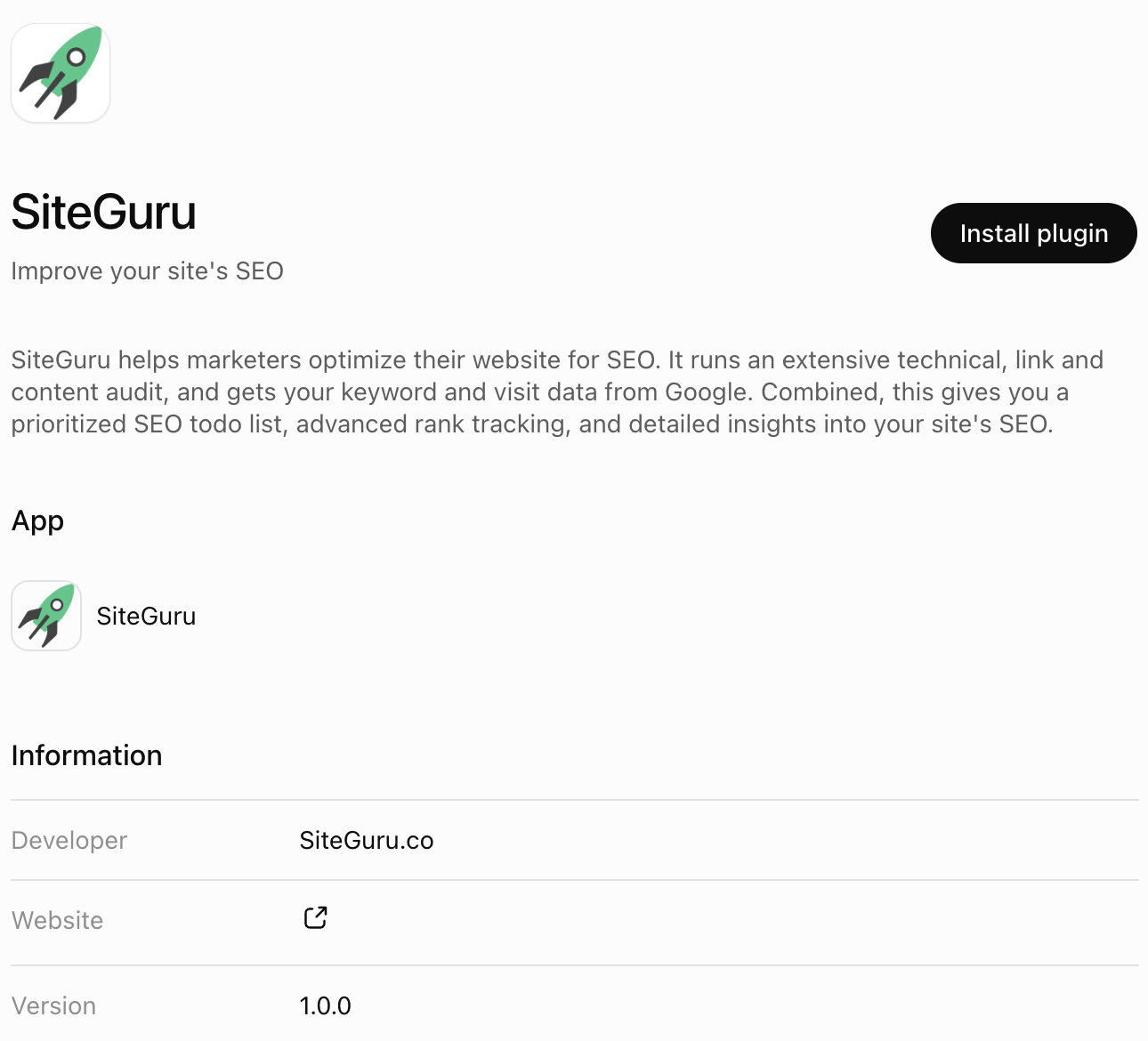
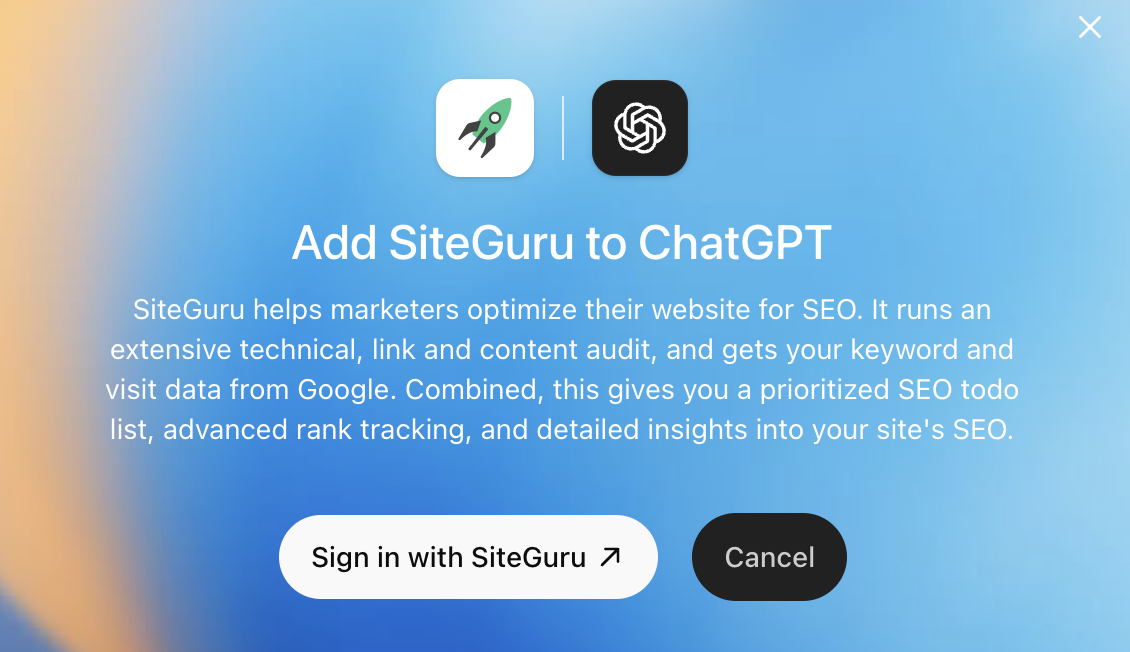
- Click Install Plugin.
- ChatGPT opens a SiteGuru page in your browser.
You're already signed in, so click Allow to approve access to your SEO data.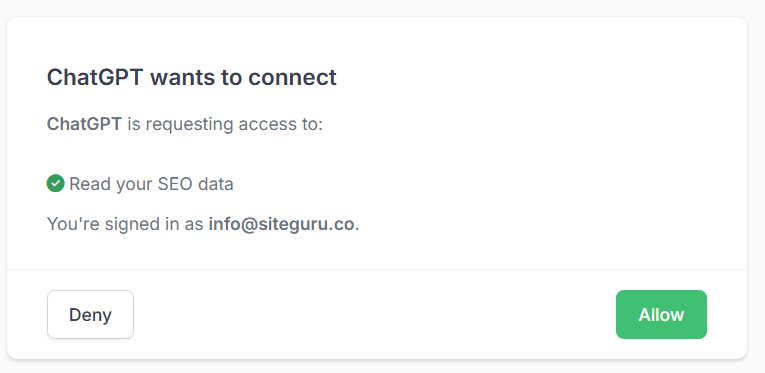
- You're connected. In a chat, enable SiteGuru from the plugins menu in the message box and ask your first question.
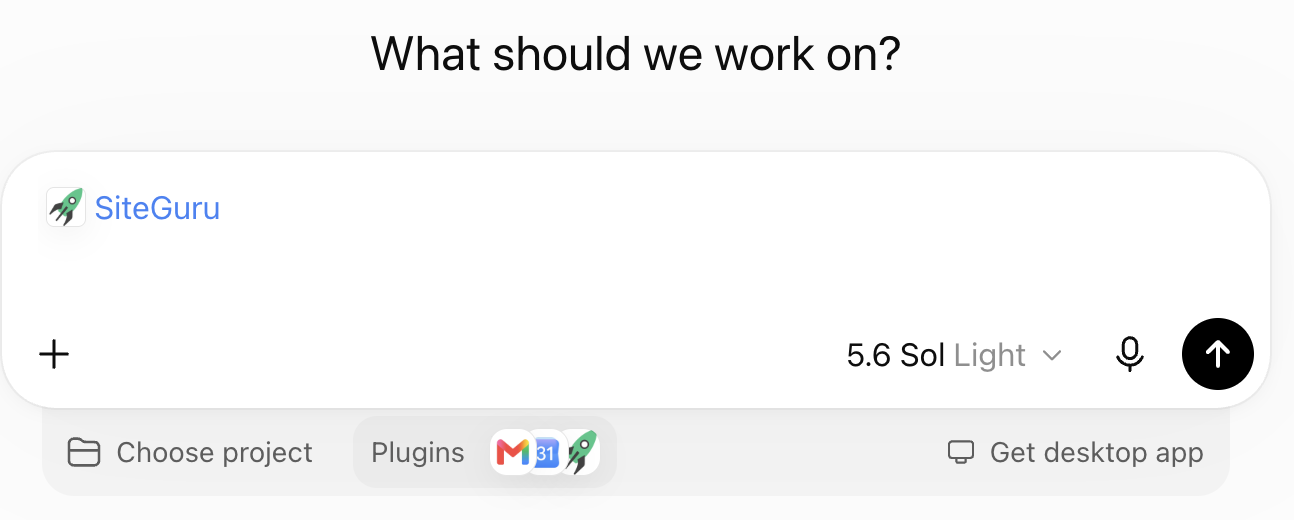
Ask your first question
With SiteGuru enabled, ask:
Which sites do I have in SiteGuru?
It should list the sites on your account. Then try What should I fix first on example.com? (using one of your own sites). ChatGPT will fetch your to-do list and walk you through the top issues.
Then try a traffic or rankings question, like Which pages on example.com lost traffic last month? or What keywords am I ranking for on example.com?
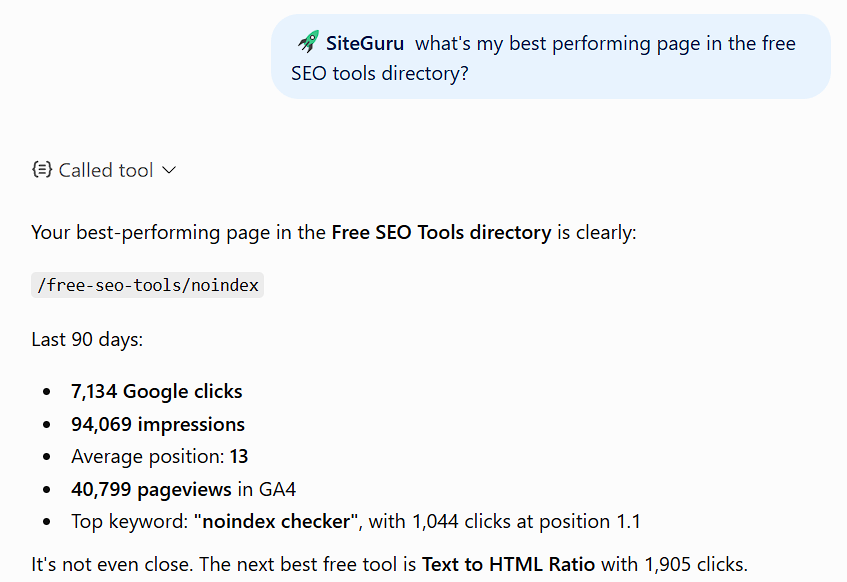
For more prompt ideas, see the MCP overview.
App or plugin?
You'll see both words, and both are right. A plugin is the listing you install. The app is the connection inside it that signs in and fetches your data. So you add the SiteGuru plugin, and the SiteGuru app inside it talks to your account.
Don't worry if a link or a menu says one where you expected the other. ChatGPT renamed its app directory to the plugin directory in July 2026, and some of the older wording is still catching up. Our own plugin lives at a chatgpt.com/apps/ address for exactly that reason.
If you can't add the plugin: connect SiteGuru by hand
The plugin is the route we recommend. If your ChatGPT plan, workspace or region doesn't offer it yet, you can still connect SiteGuru manually by building what ChatGPT calls a developer-mode app, pointed at our MCP server. You'll need one extra thing: SiteGuru's Server URL, which is https://mcp.siteguru.co/mcp.
- Turn on developer mode. In ChatGPT, open Settings → Security and login and switch on Developer mode. On a Business or Enterprise workspace an admin has to allow this first, under Workspace Settings → Permissions & Roles → Connected Data.
- Go to Settings → Plugins (or
chatgpt.com/plugins) and click the + button to create a developer-mode app. - Fill in the form:
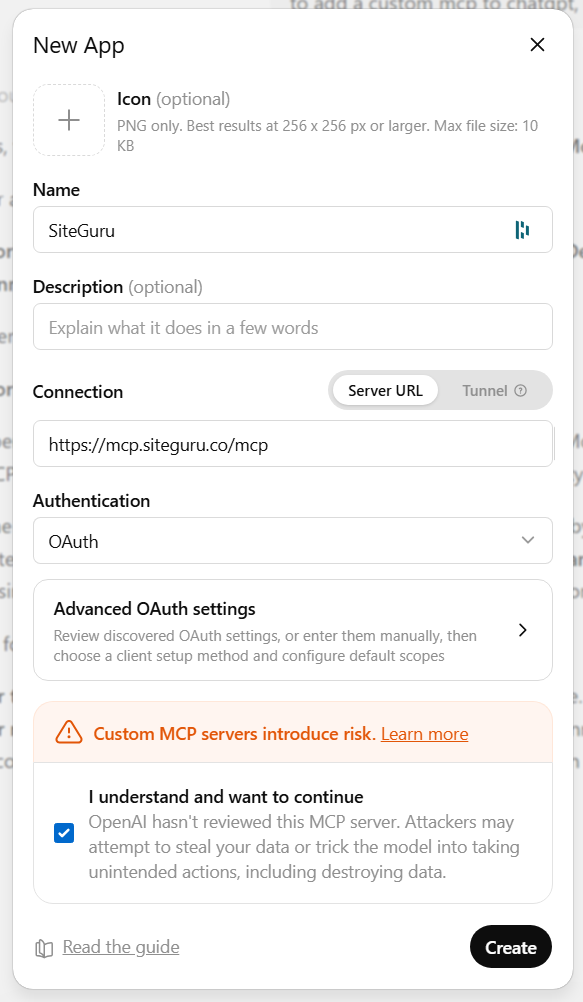
- Name: SiteGuru
- Description: SEO data and to-dos from SiteGuru
- MCP server URL:
https://mcp.siteguru.co/mcp - Authentication: choose OAuth
- Tick the acknowledgment box confirming you understand the risk of custom MCP servers.
- Continue. ChatGPT opens a SiteGuru page in your browser, where you click Allow to approve access, exactly as with the plugin.
- Your app appears under Drafts, and you'll see the list of tools SiteGuru offers. Enable it in a chat from the Developer mode tool menu.
The connection you get this way is the same one the plugin gives you. The plugin only saves you the setup.
Managing the connection
You can disconnect SiteGuru at any time from Settings → Plugins in ChatGPT. Access is re-checked on SiteGuru's side on every request, so it always reflects the sites currently on your account.
Troubleshooting
- I can't find the SiteGuru plugin. Search for it in Settings → Plugins, or open the plugin link directly. If your plan or workspace doesn't offer plugins, use the manual route above.
- "MCP access isn't included in your plan" on the Allow screen. The MCP server needs a SiteGuru plan that includes MCP access. Upgrade and reconnect.
- It's connected but ChatGPT doesn't use it. Make sure SiteGuru is enabled for the conversation in the plugins menu, then ask your question again.
- "No sites found." The connection only reaches the sites on your account. Check you approved it on the right SiteGuru account, and that the site is still in your account.
- I don't see "Developer mode". It's available on Pro, Plus, Business, Enterprise and Education accounts on the web. On a Business or Enterprise workspace, an admin has to allow it first.
Prefer Claude? The same data is available there too: see Connect SiteGuru to Claude. Still stuck? Get in touch and we'll help you get connected.