

This guide connects your SiteGuru data to ChatGPT as a custom app, so you can ask ChatGPT what to fix on your site and it answers from your live SiteGuru data. New to the SiteGuru MCP? Start with the MCP overview for what it does and what you'll need.
Before you start
- A SiteGuru plan that includes MCP access (you connect as an account owner).
- A ChatGPT plan that supports custom apps (MCP servers).
- Your SiteGuru Server URL:
https://mcp.siteguru.co/mcp
A note on Developer mode. Custom MCP apps are still rolling out, and in some regions you have to turn on Developer mode before you can add one. If you don't see Advanced settings or Create app in the steps below, open Settings → Apps, enable Developer mode, then come back. (If your region already has it on by default, you can skip this.)
Connect SiteGuru
- In ChatGPT, go to Settings → Apps → Advanced settings → Create app. (Don't see "Advanced settings" or "Create app"? Enable Developer mode first, see the note above.)
- Fill in the form:
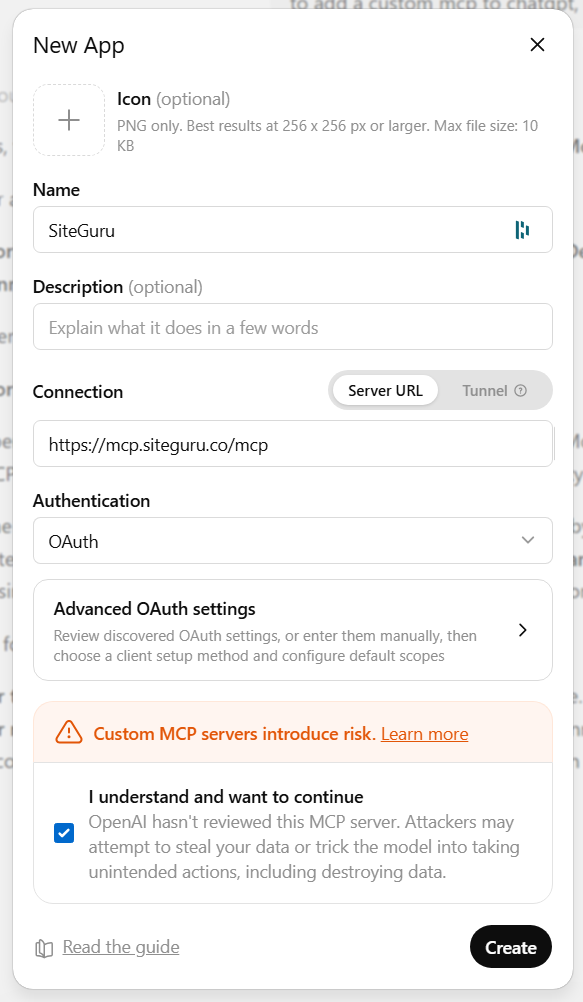
- Name: SiteGuru
- Connection:
https://mcp.siteguru.co/mcp - Authentication: choose OAuth
- Tick the acknowledgment box: "Custom MCP servers introduce risk. I understand and want to continue."
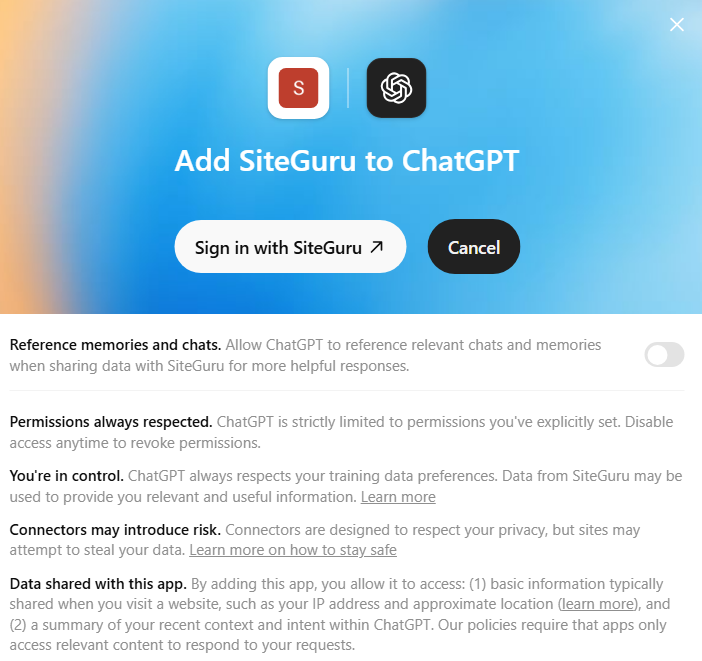
- Continue. ChatGPT opens a SiteGuru page in your browser.
You're already signed in, so click Allow to approve access to your SEO data.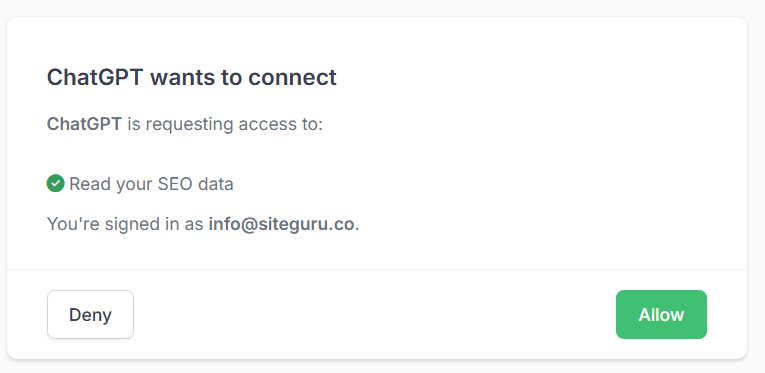
- SiteGuru now appears as an app. In a chat, enable it (the apps / tools menu) and you're ready to go.
Ask your first question
With the SiteGuru connector enabled, ask:
Which sites do I have in SiteGuru?
It should list the sites on your account. Then try What should I fix first on example.com? (using one of your own sites). ChatGPT will fetch your to-do list and walk you through the top issues. For more prompt ideas, see the MCP overview.
Managing the connection
You can disconnect SiteGuru at any time from Settings → Apps in ChatGPT. Access is re-checked on SiteGuru's side on every request, so it always reflects the sites currently on your account.
Troubleshooting
- I don't see "Advanced settings" or "Create app". Custom MCP apps need Developer mode in some regions, enable it under Settings → Apps first. If it's still missing, your ChatGPT plan may not include custom apps yet.
- "MCP access isn't included in your plan" on the Allow screen. The MCP server needs a SiteGuru plan that includes MCP access. Upgrade and reconnect.
- The app is added but ChatGPT doesn't use it. Make sure it's enabled for the conversation (the apps / tools menu), then ask your question again.
- "No sites found." The connection only reaches the sites on your account. Check you approved it on the right SiteGuru account, and that the site is still in your account.
Still stuck? Get in touch and we'll help you get connected.